
PayShare
Financial clarity from Apple Wallet to family budgets.
Capture expenses in seconds, then see your spending, plans, and shared finances in one place.
So simple, your spouse might actually use it.
Apple Wallet charges your card. PayShare captures it instantly, shows your categories, and saves the transaction with one tap. No manual entry, no forgotten receipts. Works across iPhone, iPad, and Mac with iCloud sync.
- No account needed – Uses your iCloud
- Your data stays private – Never shared
- Native on iOS, iPadOS, and macOS
Why PayShare?
PayShare is built for financial clarity with the least effort possible.
Most expense apps create more work than clarity.
- 🏦 They ask for bank credentials.
- 📝 They rely on manual entry.
- 🗄️ They store data on their servers.
- 🤯 They overwhelm you with cluttered dashboards.
Private by default. Native to Apple.
Effortless tracking
Capture Apple Wallet payments with Shortcuts. PayShare prompts you to choose a category without opening the app. If you skip it, it still lands in your timeline for later.
Keep track of everything
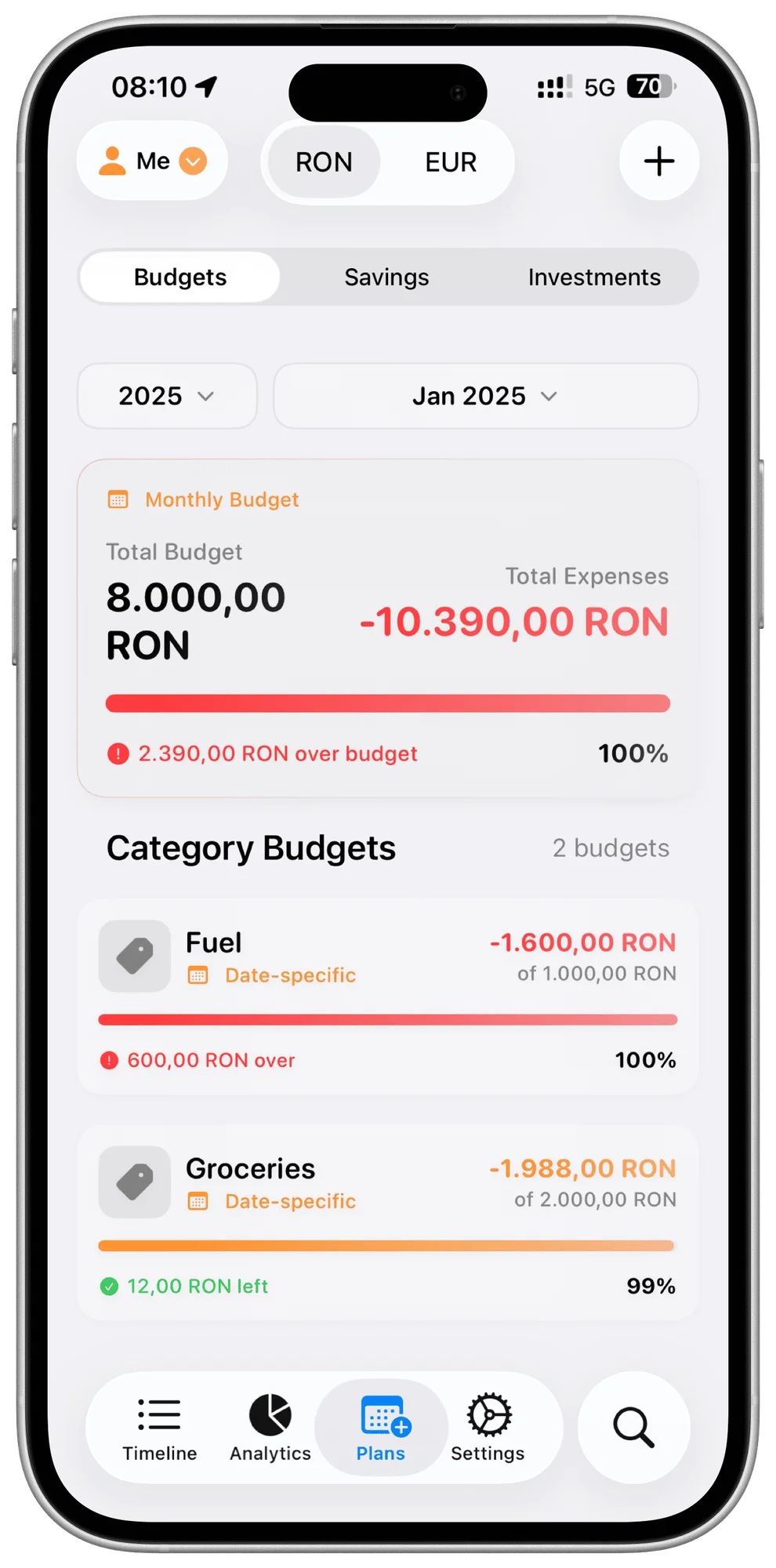
Track expenses and income in one system, then compare personal or shared views across the app.
Shared clarity
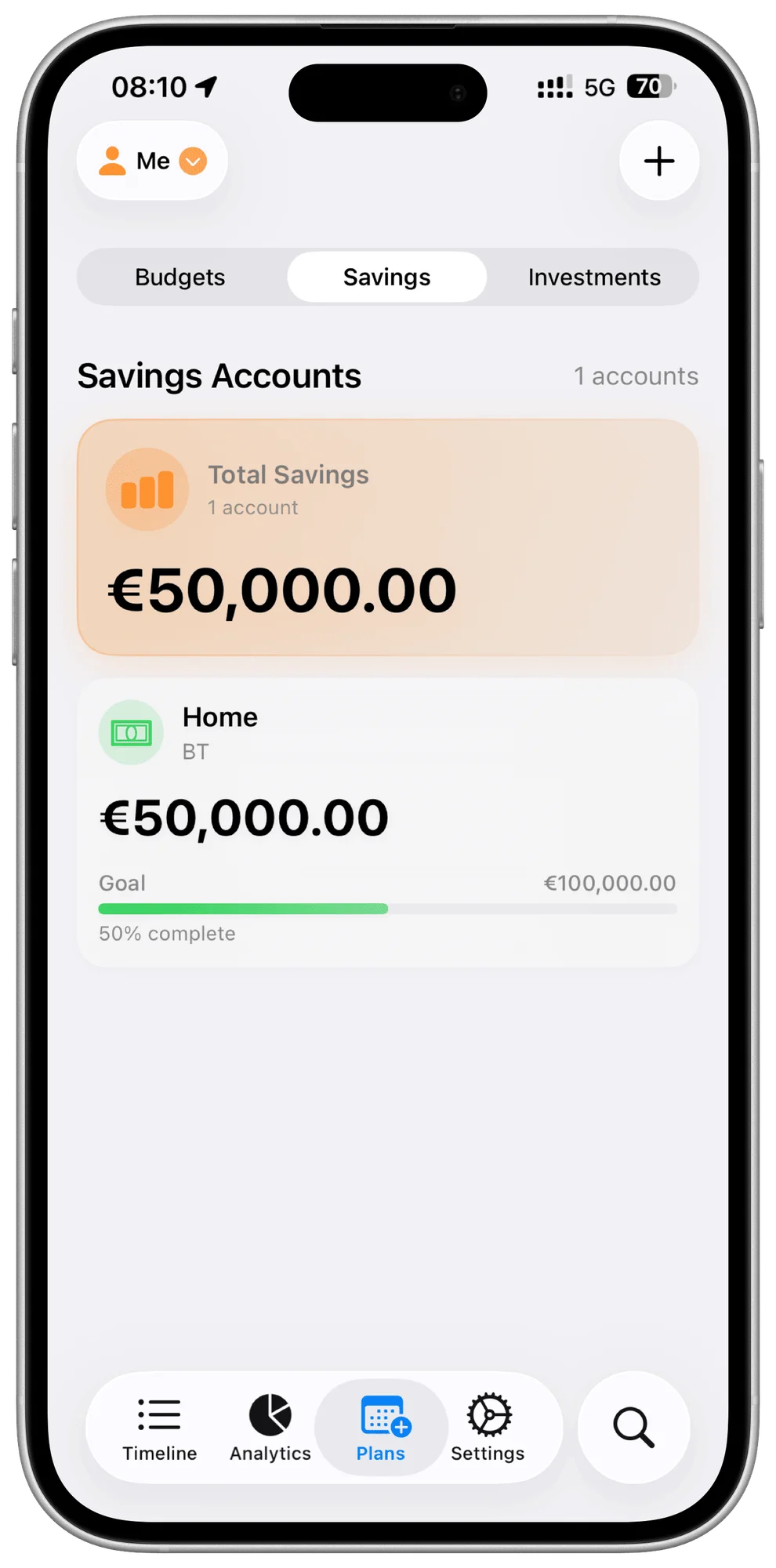
Invite people you trust with iCloud. See each other’s transactions and aggregated views, with one subscription for the whole family.
Built for real planning
Plan with category budgets and savings targets, then compare your progress across months. Track your plans alongside everyday expenses, and use connection analytics to see shared totals. Unlock guilt-free budgets powered by HealthKit activity targets for steps, running minutes, and mindfulness minutes.
Screens at a glance
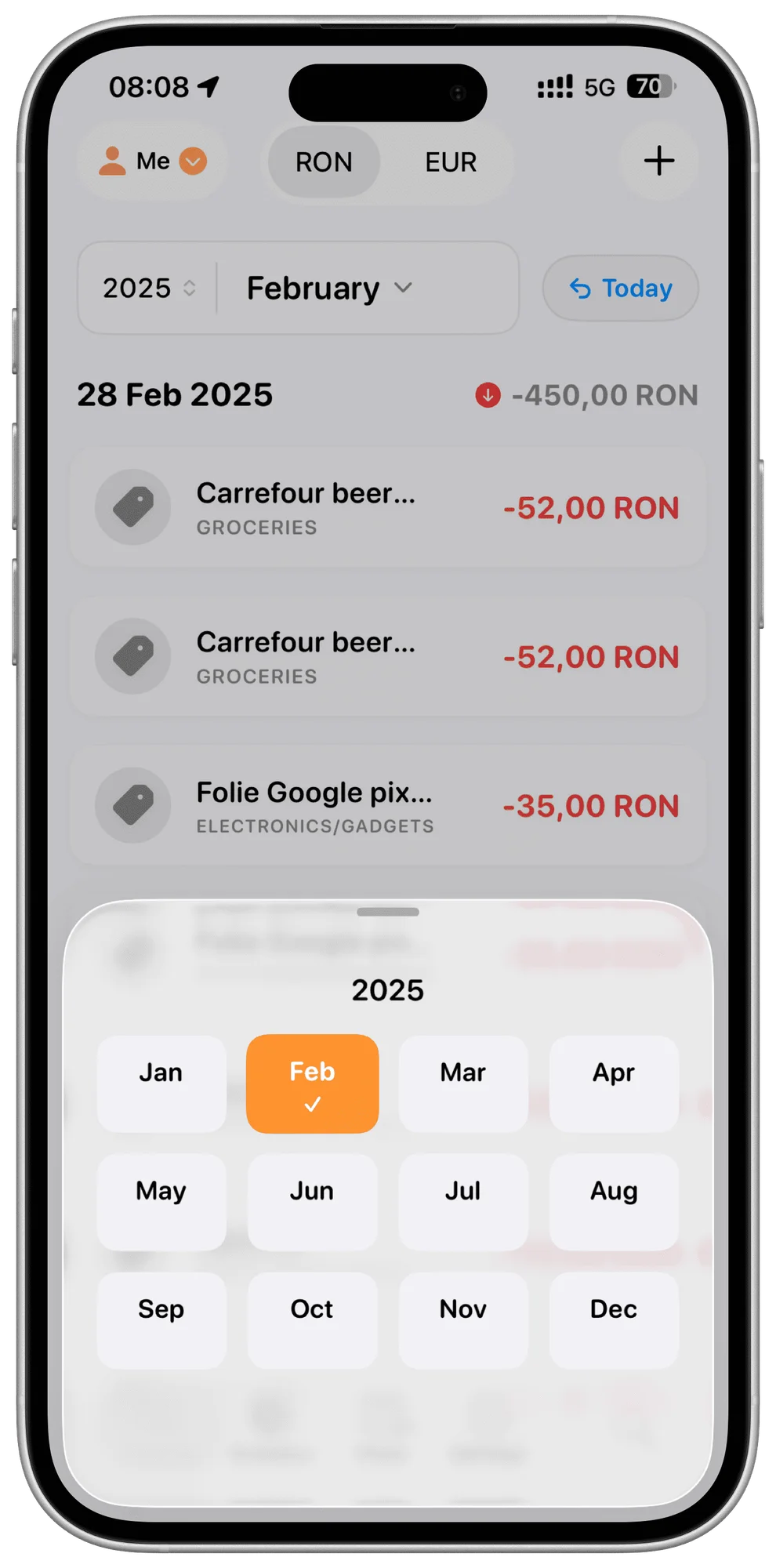
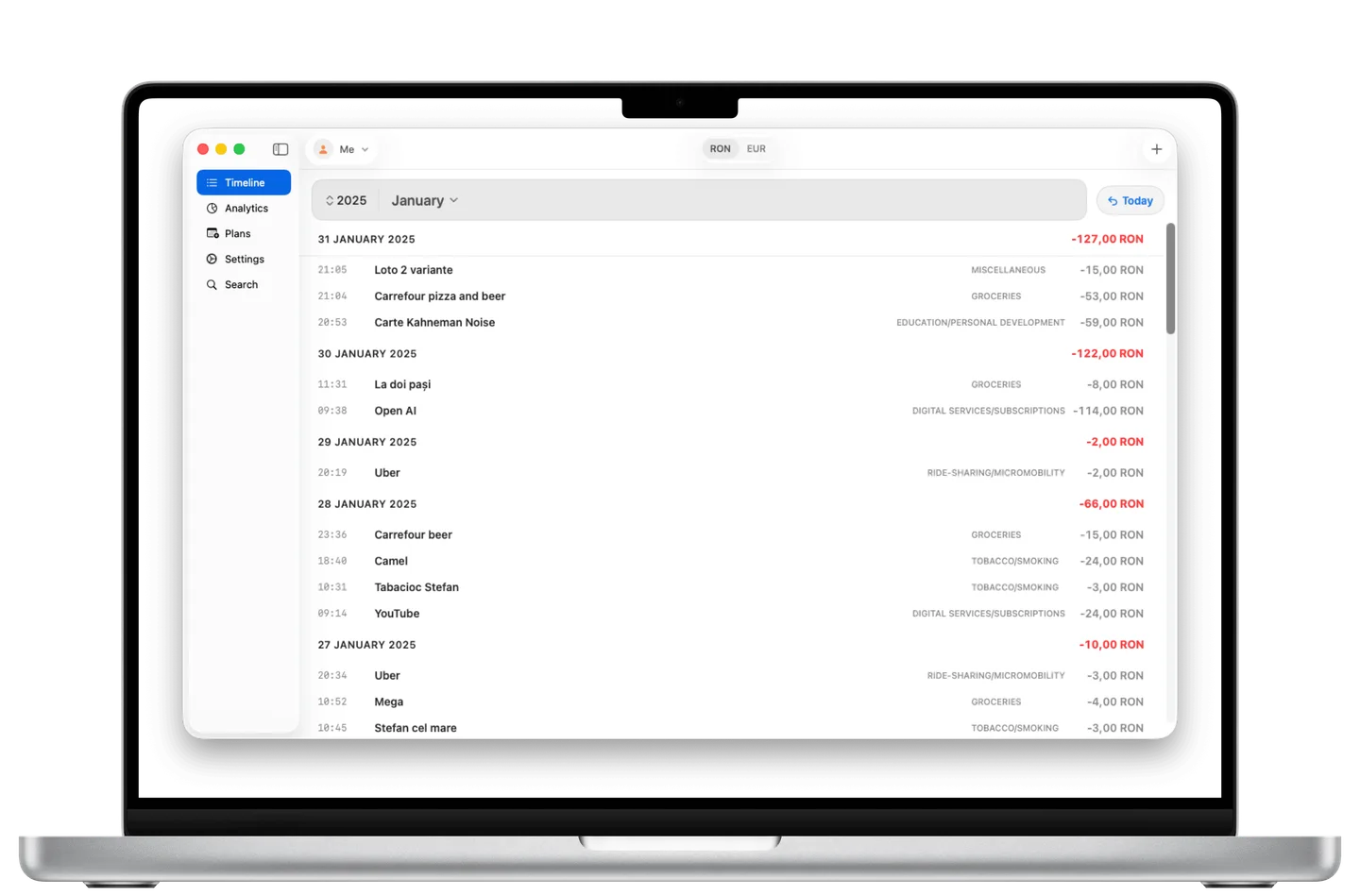
Timeline is the home feed for all transactions. Filter by month, year, and person to focus on the exact activity you need.
The effortless path to expense tracking
1.
First, create your expense categories in Settings
Go to Settings - Manage Categories and create categories that match your spending ("Groceries", "Dining", etc.) These appear every time after an Apple Wallet payment notification.
Learn more on FAQ2.
Create Wallet Transaction Automation in Apple Shortcuts
This is the essential step that makes capturing transaction data possible. Go to Apple Shortcuts - Automation, tap the "+" and create an automation triggered on "Wallet".
Learn more on FAQ3.
Create Shortcuts for non-Apple Wallet and income transactions
Make use of PayShare's app actions to quickly capture transactions you make without Apple Wallet and income related.
Learn more on FAQ